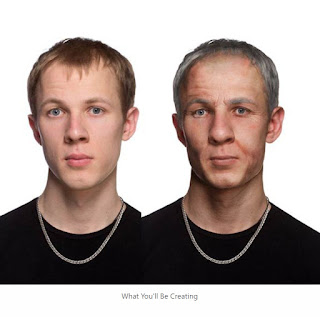
Time is the grand equalizer, youth is fleeting, and beauty fades. As a face ages, it undergoes a predictable pattern. Wrinkles form around the eyes, brow and mouth. The skin darkens, and spots occur. Gravity eventually prevails against cheeks that are not as tight and perky as they used to be. The nose and ears continue to grow long after the rest of the face has stopped. The eyes tend to sink back further into their sockets, and the hair thins, recedes, and gradually turns gray. Each of these symptoms can be simulated with some Photoshop knowhow. So if you are curious what you or a friend may look like in a few decades, this tutorial will show you how to add years to the face of a portrait. 1. Gather Resources The aging process is predictable enough that we can actually use a photo resource of an older individual to add to the photo of a younger person. The key is to find a photo of an elderly model that has similar facial features to the younger model. Look for things like simil...